Activity 1. Basics with LCD display 16x2
This activity uses a liquid crystal display 16x2. (50 minutes)
Activity 1a
In this part the aim is for the Arduino Uno to display the message "Hello! This is Module_1-4 "on the LCD.
Step 1. Draw the circuit in Tinkercad.
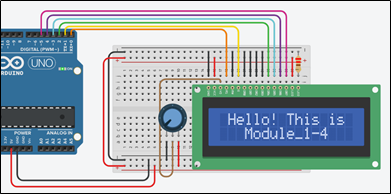
Step 2. Study the code and write it on the microcontroller:
/* Hello! This is Module_1-4
Circuit Connections:
** LCD
               Ground                    => Gnd
               Power                     => Vcc
               Contrast                  => Potentiometer
               RS                        => PIN_0
               RW                        => Gnd
               E                         => PIN_1
               DB0                       => Gnd
               DB1                       => Gnd
               DB2                       => Gnd
               DB3                       => Gnd
               DB4                       => PIN_2
               DB5                       => PIN_3
               DB6                       => PIN_4
               DB7                       => PIN_5
               LED Anode                 => Vcc
               LED Cathode               => Resistor 220Ω =>  Gnd
** Potentiometer
               Terminal 1                => Gnd
               Wiper                     => LCD_Contrast
               Terminal 2                => Vcc
*/

//include the library
#include <LiquidCrystal.h>

#define RS 0              //give the name "RS " to PIN_0
#define EN 1              //give the name "EN " to PIN_1
#define DB4 2            //give the name "DB4 " to PIN_2
#define DB5 3            //give the name "DB5 " to PIN_3
#define DB6 4            //give the name "DB6 " to PIN_4
#define DB7 5            //give the name "DB7 " to PIN_5

//configure the library with Arduino Uno - LCD interface
LiquidCrystal lcd(RS, EN, DB4, DB5, DB6, DB7);

//The setup() function initializes and sets the initial values
//It will only run once after each power up or reset
void setup() {
//configure the LCD's columns and rows
lcd.begin(16, 2);
//print a message
lcd.print(" Hello! This is");
//go to: first column, second row
lcd.setCursor(0,1);
//print a message
lcd.print("   Module_1-4");
}

//loops consecutively
void loop() {
  ; //do nothing
}
Tip. In the loop() we do not need to do anything as the operation of the application has already been achieved.
Step
3. Run
the simulation and check the correct operation of the circuit